

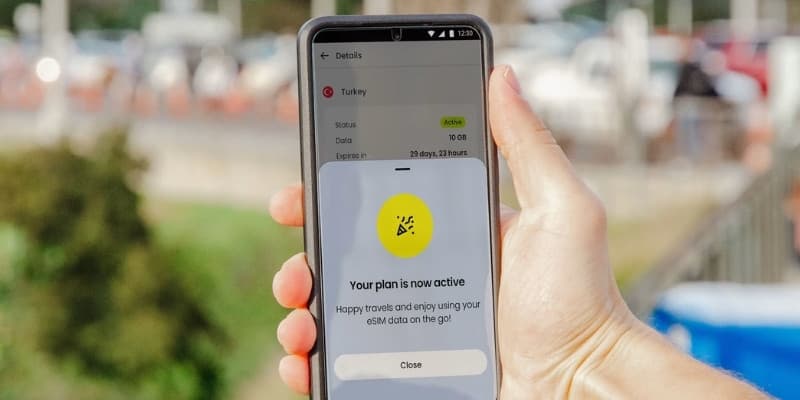
If your eSIM has no data abroad, the cause is almost always one of two settings: the eSIM is not selected as your data line, or data roaming is switched off for it. Check those first, since they fix most cases. The steps below run from the most common cause to the rarer ones, so work through them in order.
Before anything else, confirm the plan is active for your location and still has data and validity left. A plan that has not started, or has run out, behaves like a fault but is not one.
Start here: data line and roaming
These two settings cause most "no data" reports.
First, set the eSIM as your data line. On iPhone, Settings, Cellular, Cellular Data, and choose the travel eSIM. On Android, open your SIM settings and set the eSIM as the line for mobile data. If your home line is still the data line, the eSIM will not carry data.
Second, turn on data roaming for the eSIM. A travel eSIM connects through local partner networks, which counts as roaming, so this must be on. On iPhone, Settings, Cellular, tap the eSIM line, and switch Data Roaming on. On Android, select the eSIM in SIM settings and turn on Data roaming. This applies to the eSIM line only.
If you had no data, one of these two is the likely culprit. Fix them and check again.
Restart and re-search for a network
If the settings are right but there is still no connection, prompt the phone to find a network. Toggle airplane mode on, wait a few seconds, then off. If that does not work, restart the phone. This is often all it takes once you land, since the phone needs to register on a local network.
Set the network manually
If the phone is not picking a network on its own, choose one by hand. On iPhone, Settings, Cellular, tap the eSIM, Network Selection, turn off Automatic, and pick a network from the list. On Android, the path is usually SIM settings, then Mobile network, then Choose network manually. Select a network your plan supports, which the provider lists. Give it a minute to connect.
Check coverage and APN
Confirm you are in an area with coverage on a supported network; inside thick buildings or remote areas, signal can drop regardless of the plan. Some plans also need an APN set, an access point name, which the provider gives you. If your provider supplied an APN, enter it in the eSIM line's settings exactly as written.
Reinstall as a last resort
If none of the above works, the profile may not have installed cleanly. Contact your provider first, since removing an eSIM deletes the profile and some plans cannot be reinstalled from the same QR code. With their guidance, you can remove and re-add the eSIM, or they can re-issue it. Keep your purchase confirmation, which holds the activation details.
Frequently asked questions
My eSIM installed but has no internet abroad. What is the most likely fix?
Set the eSIM as your data line and turn on data roaming for it. Those two settings cause most no-data cases. Then toggle airplane mode or restart to re-search for a network.
Why does my eSIM say "no service"?
The phone has not registered on a local network. Check that roaming is on for the eSIM, then toggle airplane mode or restart. If it still will not connect, select a supported network manually.
Do I need to turn on data roaming even though I bought a local plan?
Yes. A travel eSIM connects through local partner networks, which registers as roaming, so data roaming must be on for the eSIM line. It does not mean you are paying roaming rates; your plan covers the data.
Should I delete and reinstall my eSIM if it will not work?
Only as a last resort and ideally after contacting your provider. Removing an eSIM deletes the profile, and some plans cannot be reinstalled from the original QR code. The provider can re-issue it if needed.